Darkroom Notebook
Welcome to your darkroom printing notebook. Precise exposure logs, chemical formulations, and print sequence journal.
I am not a developer, just a darkroom printing enthusiest with some app knowledge that wanted to make my printing time easier. This is a stand alone Android apk, not available on the Google play store. It takes a bit of time, money, and knowledge I lack to set up developer accounts, pass theyre scrutiny, etc. I'm open to suggestions. [email protected]
If you find the app useful, consider leaving me a tip. Download at the bottom of the page. Thnaks!
Installation
To download and install a non google store APK file on your Android device, you must enable "Install unknown apps" in your settings
- Open your device's Settings.
- Go to Apps & notifications (or just Apps)
- Tap Special app access and select Install unknown apps
- Choose the browser or file manager you will use to locate the APK file (e.g., Chrome), and toggle Allow to ON
- Download the app via the link provided, tap the DarkroomNotebook.apk to install.
Print Log SHeet
Log New Sheet
Tap the Log New Sheet button, and Unlock & Edit. Log film reference (e.g., TX-400), print dimensions, paper grade manufacturer, and lens aperture settings. Logging variables ensures complete repeatability weeks or years after creating the master print.
Work Your Way
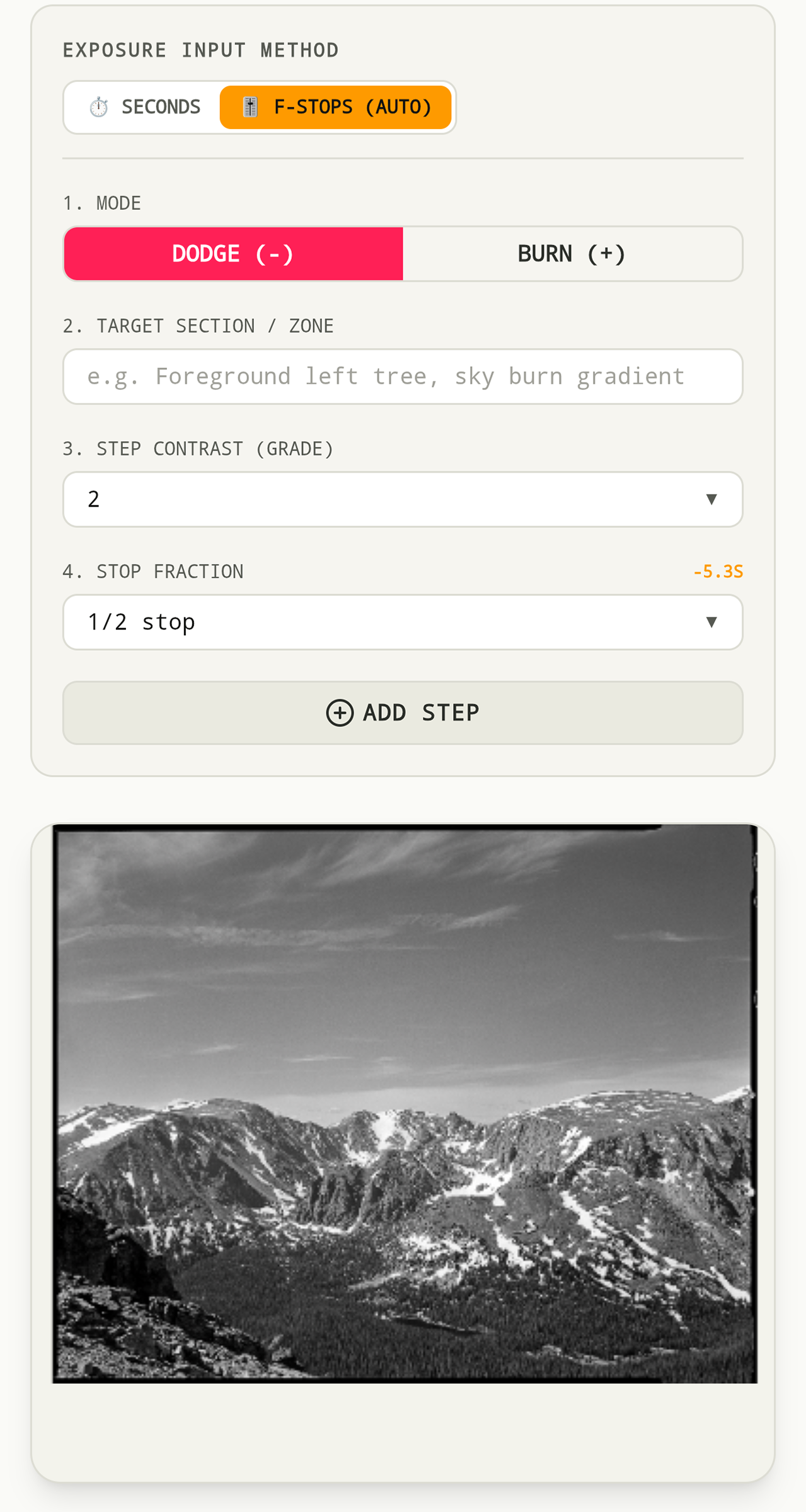
Select whether you are straight printing or split grade printing. Dodge and Burns can also be recorded as seconds or stops, with seconds being automatically adjusted for the stops selected.
Dodge & Burn Manifest
Create a Dodge & Burn manifest in either seconds or stops to create a repeatable sequence. Once you have entered these, you can upload or take an image of your print and draw those instructions on the image. Once you are done with your sheet, download or share if wanted to have a paper copy to work with.
Interactive Dodge & Burn Map
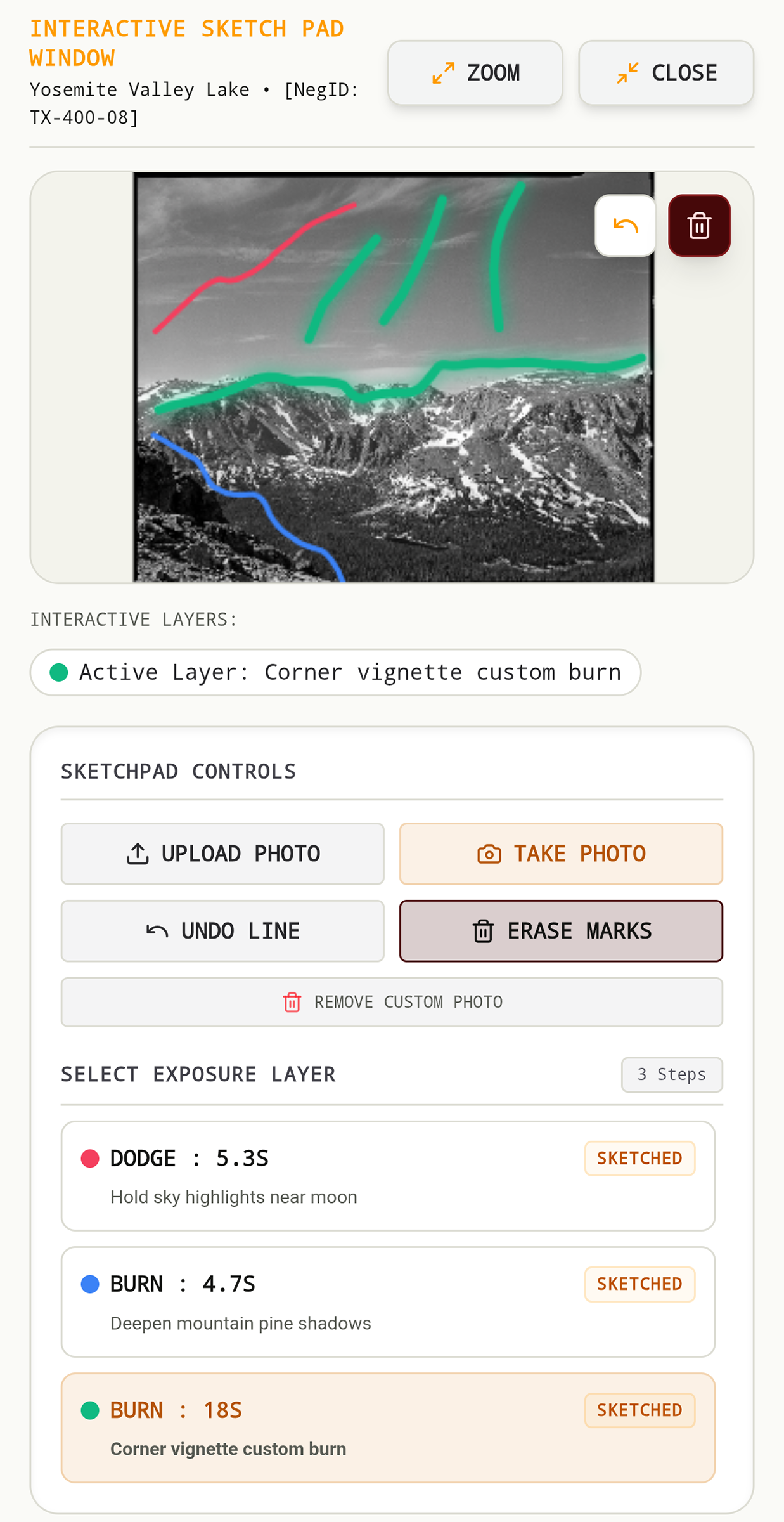
Rather than writing messy shorthand notes, select or take a picture of your print, use the image to draw on and create a Dodge & Burn map
Once youve created dodge and burn steps. Tap the placeholder image to open the sketchpad window.
Once the sketchpad is open, you have the ability to open an image from your photos or take a picture with the device camera.
Once your image is loaded, you can draw on the image by selecting the dodge burn step you want to represent. Each step is displayed with a different color on the image.
Recipes & Process Tab
The Chemistry Formulas or Process Sequence Shelves are used to store developer recipes (e.g., Dektol, Multigrade, Ansco 130), dilutions (e.g., 1+9, 1+1), working temperatures, and maximum development capacity, as well as process instructions. 8 minutes, 30 second inversions etc. You can select target volumes for the recipes, all are based off of 1000ml, if you want to mix a lower amount, enter the volume and recipe adjusts the compnents.
Once a sheet is created, tap the "UNLOCK & EDIT" button on the top right to edit. All Recipes and Process can be downloaded either individually or as a whole Shelf to an html file saved in your devices downloads folder for printing, or shared via email or text.
Backups
You have the option to save a backup of your whole catalog.
- Open Preferences & Settings inside the App
- Storage & Backup will back up the full apps content, or restore it
- File is saved locally in your devices Downloads folder or can be shared over email, text.
Download
Code: (Enter this code below!)
Thank you! Emjoy the App